
FAQ
Freqently Asked Questions
This page contains solutions for general questions
Questions List
Q1: How to update Inoterior theme?
A1: We are providing regular bug fixes, enhancements and also features to our all buyers. So we are releasing new version frequently. The theme update process is handled by the Envato Market Plugin plugin. Click here to know how to setup Envato Market Plugin. You can download the plugin by clicking here.
Q2: How to find Inoterior theme Purchase Code ?
A3: The purchase code is a code that verifies that you are a genuine buyer. Here are steps to find your purchase code:Q3: How to set responsive menu breakpoint (from which window size the menu will become responsive) ?
A3: You can set it from
Admin > Inoterior Options > Menu Settings section. Just go to this section and select window size (or set pixel) under "Responsive Menu Breakpoint" option. See screenshot below: 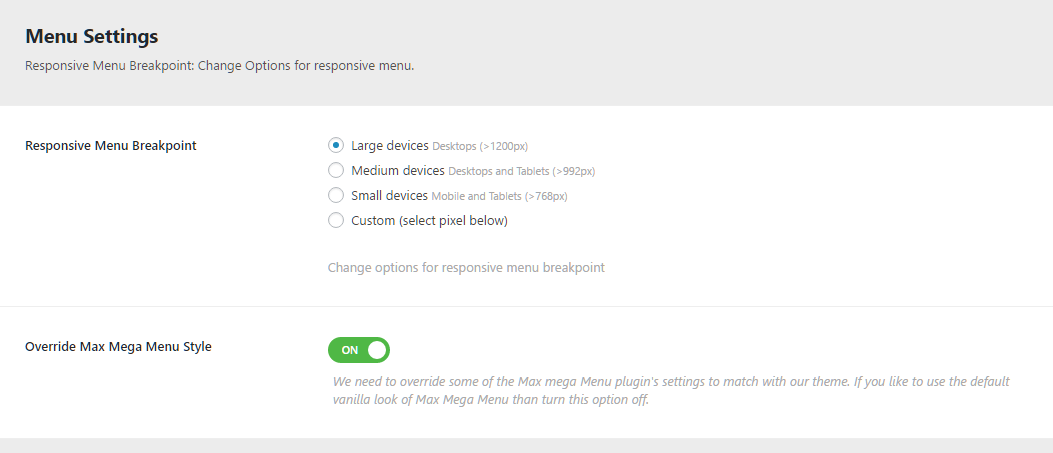
Q4: How to set MailChip newsletter form?
A4: We are using MailChimp for WordPress plugin to generate MailChip subscribe form in footer. So first install this plugin. Than follow steps given below:
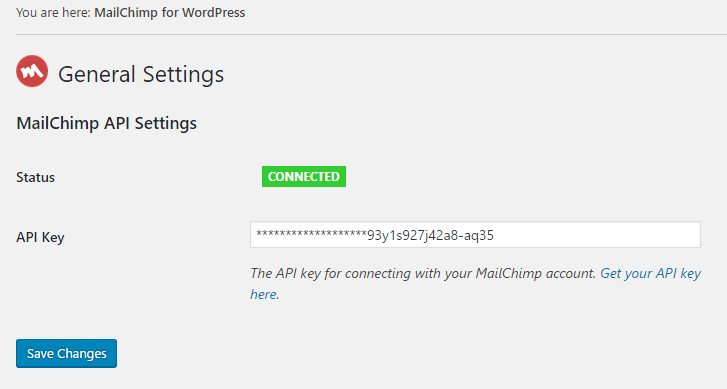
- First make sure you link your MailChip account with this plugin. Just go to Admin > MailChip for WP plugin settings section and link your account. You just need to copy/paste the API code from your MailChimp account to here and click "Save Changes" button. See screenshot given below:
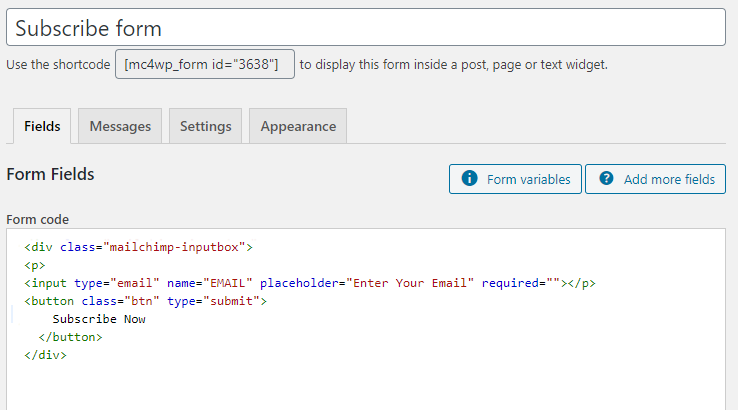
Now go to Admin > MailChip for WP > Forms section and paste this code:
<div class="mailchimp-inputbox">
 <input type="email" name="EMAIL" placeholder="Your email address.." required />
 <button type="submit" class="btn">Subscribe Now</button>
</div>
Like this:
Q5: How to solve Inoterior Option look break and dispaly continue scrolling ?
A5:
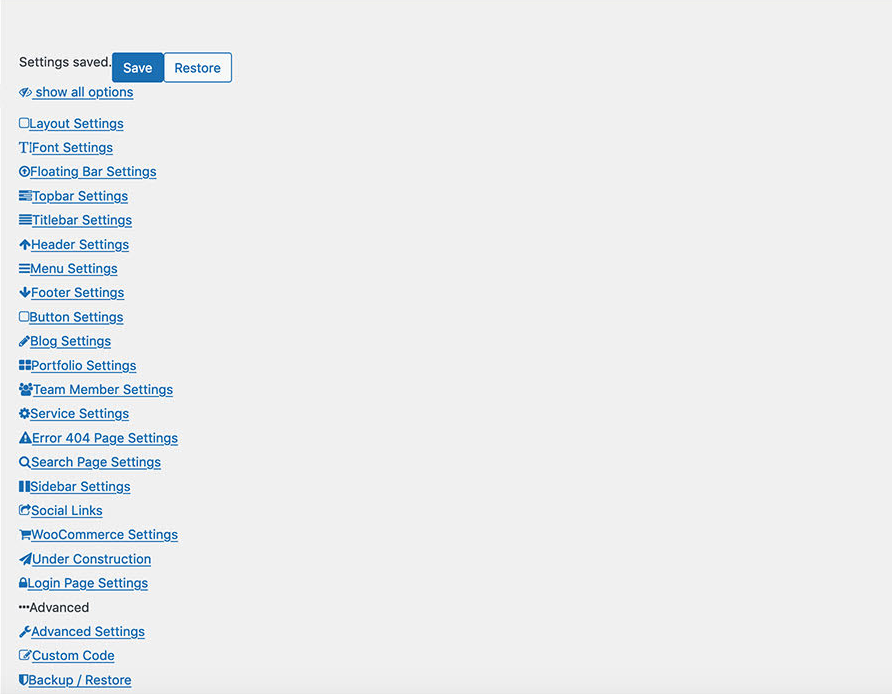
When your site install SSL in your site after theme installation than codestar framework CSS & jQuery didn’t get loaded in your site. But you can easily solve this in your site. Just set https in general settings as described in the screenshot below.
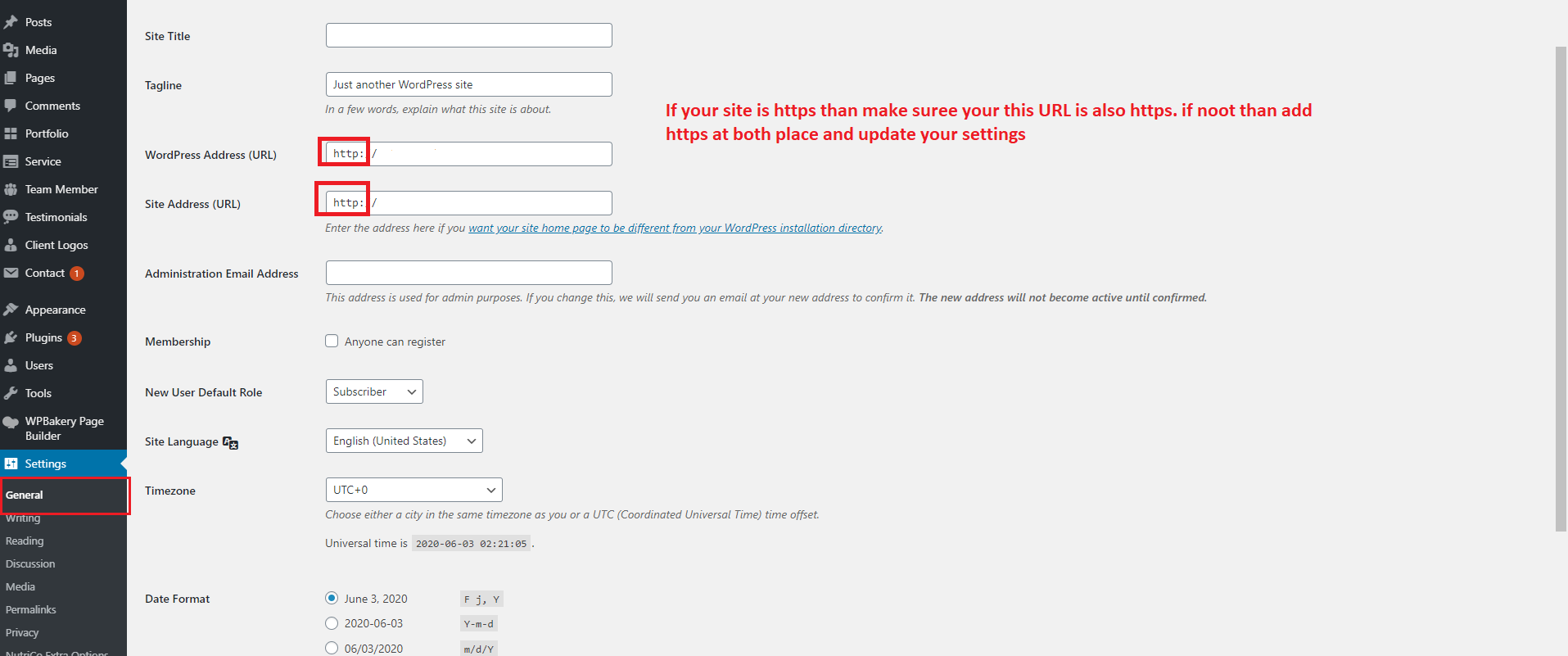
If still not solved than Just install and activate Really Simple SSL plugin your site. Than go to Settings > SSL page and click on Go ahead, activate SSL! button. Than check your Inoterior Options page.
Q6: How to enable AI Smart Search on my site?
A6: Go to
Admin > Inoterior Options > Smart Search AI section. Under General Settings, set Enable AI Smart Search to YES. Then configure Enable Smart Search, Enable AI Search, and other sub-options as needed. Click Save Changes button. See the AI Smart Search documentation page for full details.
Q7: Why is the AI Chatbot not showing on my site?
A7: Make sure all of the following conditions are met:
- Enable AI Smart Search is set to YES under General Settings
- Enable AI Chatbot is set to YES under Chatbot Settings
- An AI Provider is selected and a valid API key is entered under AI Provider Settings
- You have clicked Save Changes after updating settings

Q8: How to disable Voice Search or Visual Search?
A8: Each feature can be disabled independently without turning off the entire Smart Search AI module. Go to
Admin > Inoterior Options > Smart Search AI and set the following options to NO:
- Enable Voice Search – Under Voice Search Settings
- Enable Visual Search – Under Visual Search Settings
Q9: How do Trending Searches work?
A9: Trending Searches are controlled under General Settings in the Smart Search AI tab:
- Set Enable Trending Searches to YES to display popular search terms in the search panel
- Ensure Enable Search Analytics is set to YES so the theme can collect search data to determine trending terms
- Click Save Changes button

Q10: Why is Voice Search not working on my site?
A10: Voice Search requires the following to be configured correctly:
- Enable AI Smart Search must be set to YES
- Enable Voice Search must be set to YES under Voice Search Settings
- Voice Provider must be set to a provider other than None (Groq Whisper, Google Speech-to-Text, Deepgram, or AssemblyAI)
- The corresponding API key must be entered for the selected voice provider
- The visitor must grant microphone permission when prompted by the browser
Q11: Do Smart Search AI features include WooCommerce products in results?
A11: Yes. In
Admin > Inoterior Options > Smart Search AI:
- Set Enable WooCommerce Integration to YES under General Settings
- Under Search Settings, check the appropriate post types in Searchable Post Types, AI-enabled Post Types, and Live Suggestion Post Types to include products
Q12: What is the difference between Recent Searches and Search History?
A12: These are two separate features in the Smart Search AI tab:
- Enable Recent Searches (General Settings, default: ON) – Shows the visitor's recent search terms in the search panel
- Enable Search History (Search History Settings, default: OFF) – Enables server-side search history with Sync Across Devices (default: ON) and History Retention (Days) (default: 90)

Q13: How to configure an AI provider for Smart Search AI?
A13: Go to
Admin > Inoterior Options > Smart Search AI > AI Provider Settings and follow these steps:
- Ensure Enable AI Smart Search is set to YES
- Select a Provider: OpenAI, OpenRouter, Groq, Google Gemini, or Ollama Local
- Choose the appropriate Chat / Summary Model for your provider
- Enter the provider API key (or Ollama Endpoint for Ollama Local, default: http://127.0.0.1:11434)
- For OpenAI embeddings, select an Embedding Model and enable Enable Remote Embeddings if needed
- Click Save Changes button
Note: If you do not want to use remote API calls, leave Enable Remote Embeddings disabled — the theme will use a local TF vector fallback with no API calls.
See Smart Search AI in Theme Options for all provider options and model choices.